We will always navigate using markers. Not only
do markers make it easier to view the contents of
a busy score but they allow the addition and deletion
of frames without impacting the navigation structure
of the movie (demonstrated in class)
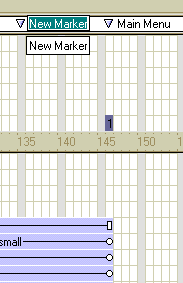
The Marker Channel is located directly above the
effects channel. To create a new marker you must
place the mouse cursor both in the marker channel
and in the frame that you would like to mark. Once
in place, click the mouse button once to create
a marker.
Markers are very flexible, to move a marker to
another frame you need to bring the mouse up to
the small triangle icon until the "hand"
cursor appears, then click & drag the marker
to it's new position. To delete a marker again bring
the mouse into position but this time drag the marker
into the effects channel, this action deletes the
marker.
It is always a good plan to "mark" the
start & finish of sequences within your movies.
For example, you should mark the start of the intro
sequence, and where it ends. Similarly you should
mark the start of the main menu animation and mark
the end of the main menu animation as "Main
Menu"
Figure 4.1: New Marker
1. Go through you score & insert a marker at
the start and end of the 2 main sections of your
movie so far, the intro screen and the main menu.
2. Create further markers in the score that should
assign at last 30 frames for the following sections:
Company Details
Employee Details
Department Details
Exit
Having marked these sections we need to navigate
to them from the main menu. To achieve this we are
going to use lingo, specifically a cast member script,
to make the playback head jump to a section of the
score on demand.
4. To write a cast member script we need to open
the cast (Ctrl. 3).
5. Select the cast member that you wish to add
the script to. Open the script window by doing one
of the following:
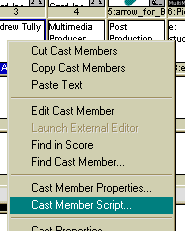
Right click on the cast member and select "Cast
Member Script...", see figure 4.2
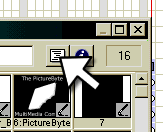
Select the cast member and click on the "script
icon" located on the upper right hand corner
of the cast window.
Either one of these options will open the script
window that will allow you to compose the necessary
lingo to enable the playback head to jump to, for
example, the company details page when the company
logo was clicked.
It's important to bear in mind that when you use
a cast member script the code becomes part of the
cast member & therefore part of any sprites
that are made from it.
Figure 4.2: New Cast Member Script
by right clicking on the cast member
Figure 4.3: New Cast Member Script
using the script icon
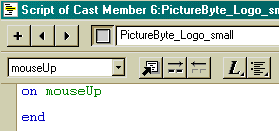
When the script window opens Director
will start the script for you with the lines "on
mouseUp" and "end".
This means that the action code that you will write
will only be called when the mouse button is clicked
UP over the sprite. You could change this event
to a mouseDown, but it's better to keep navigation
events to mouseUp.
Figure 4.4: Cast member script
6. Markers are sometimes known as
labels so when we create a marker we are labelling
the frame with whatever name we give the marker.
When navigating to a marker you refer to the marker
as frame so we are going to a frame called "marker
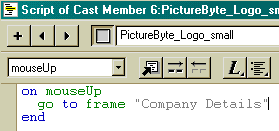
name". So for the Company Details page we will
add a cast member script to the company logo that
will tell the playback head to go to the company
details page when the mouse is clicked up, see figure
4.5 for the actual code.
It's important to remember that you'll need to
use the EXACT name of the marker in your movie.
Figure 4.5: Navigation Script
7. Add navigation scripts to all relevant cast
members:
To "Company Details":
Company Logo
Company Name
Company Address
To "Department Details":
Department Name
Employee Title
To "Personal Details":
Employee Name
To "Exit"
Nothing as yet
8. Save and play your movie. Now when you click,
or more appropriately mouseUp, on any of the active
links the play head will be moved to the frame requested.
Figure 4.6 below shows the project so far.
Figure 4.6: The project so far
Additional Notes:
Cast member scripts are similar to behaviors
(see tutorial 8) in that they execute code specific
to a cast member. If you click on a cast member,
then it executes the code in its script. However,
cast member scripts are different from behaviors
in several ways. First, they are not separate cast
members like movie scripts and behaviors; instead
they are combined with the member they are assigned
to. Second, cast member scripts cannot be shared
across different cast members. Each cast member
can have its own script, but that's all.