Director Tutorial 9 - More Lingo: The Movie Script
At this point we have met 3 type of Lingo script:
The Frame Script (Tutorial 3)
The Cast Member Script (Tutorial 4)
The Sprite Script (Tutorial 8)
One thing these scripts have in common is that they are specific
to a particular element within Director, for example a frame script
is attached to a frame and called when a frame event occurs (e.g.
exitFrame) and a cast member script is an integral part of a cast
member. The movie script is a different kind of script because it
is independent and can be called from any element at any time.
Movie scripts contain code that can be called from anywhere in a
Director movie regardless of what frame you're on or which sprite
gets clicked. If you put a mouseDown handler in a movie script, then
that code will execute each and every time the mouse button is pressed
in your movie regardless of whether you click on a button or the background.
The same applies with pressing keys. If you put a keyUp handler in
a movie script, then that code will be executed every time you press
and release a key.
We are going to use a movie script to contain all scripts that will
enable external links like e-mail and URL's. To do this we must learn
how to create custom handlers. As you know a handler is a
script that handles an event, so a mouseDown event could be handled
by a cast member script.
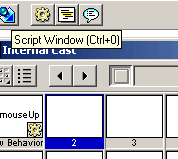
1. Create a new movie script by first selecting an empty cast member
and then clicking on the script window icon (see figure 9.1 below).
Figure 9.1: Create a movie script
Now we will create a handler that will open the default browser on
your users machine and link to a specified URL
2. In the movie script editor type the following:
on clickCompanyURL
This line defines the event that will execute the code. The event
is "clickCompanyURL" which is a custom event, we can call
a custom event anything we want with the following limitations:
It must start with a letter.
It must include alphanumeric characters only (no special characters
or punctuation).
It must consist of one word or of several words connected by an
underscore—no spaces are allowed.
It must be different from the name of any predefined Lingo element.
3. Next type the following line of code:
gotonetpage"<insert your company
URL here>"
This line describes the action that will run when the "clickCompanyURL"
is called. The word gotonetpage tells director to
open the default browser for that machine. Once open the browser will
look for the URL specified.
4. To complete this handler type the following line:
end
This word must be included in all handlers, custom or not. The word
"end" tells Director the code for this handler has come
to an end.
OK, so we've created a movie script and written a customer handler
within that movie script that will run when the "clickCompanyURL"
event occurs, but when will that event occur? Well, to run this code
we will need to CALL the handler and we call handlers by quoting their
name, next question is where do we call this handler from?
The best place to call the handler is from any cast member that we
want to link to the company's web site. By using a cast member script
we ensure that every instance of that cast member will include the
script to call the "clickCompanyURL" handler, and we are
using a customer handler in the movie script to make it easier to
manage changes in URLs or other details by having the action code
in a central location (there may be many different cast members that
we may want to link to the Company's web site and since they will
all refer back to the movie script it is there where we need only
apply changes in URLs etc.).
5. Open the internal cast, Ctrl. 3, and select a cast member that
requires a link to the company web site.
6. Now we need to add a handler that will call our custom handler.
This will be a mouseUp handler because all linking handlers
are always mouseUp handlers. Why? Because when a user clicks on link
we need to give them a chance to either change their mind or recover
from an error.
In the case of changing their mind they will have clicked down
on the link (mouseDown event), while holding the mouse button down
they will decide "don't really want to go there" and roll
off the link before clicking the mouse button up (mouseUp): Since
the mouse is no-longer over the sprite the mouseUp event is not
called.
In the case of an error your user will have clicked down on the
link (mouseDown event), while holding the mouse button down they
will have realised that they have clicked on the wrong link and
roll off the link.
Like the song goes, to run a custom handler all we need to do is
call out it's name:
on mouseUp
clickCompanyURL
end
When Director sees the word clickCompanyURL it will immediately
look for a handler of this name, and it will find it in our movie
script.
8. OK, we've created a customer handler for the company URL. You
can now create additional customer handlers for all other URLs in
your movie.
9. The other type of external link are the e-mail links. We are going
to use customer handlers again for these links. Create a custom handler
in the movie script called clickCompanyEmail.
10. In the action part of the script type the following: